When working on ASO, most attention typically goes to what users see before they install: the icon, screenshots, title, description, ratings. But the App Store added another layer of opportunity — one that operates differently.
In-App Events and in-app purchases might look like product-side tools at first glance: one for engagement, the other for monetization. In practice, both affect search visibility, expand semantic coverage, and create additional entry points into the funnel — all without touching the app's core metadata.
This article covers how both tools work mechanically in the App Store and Google Play, how to optimize each one, and how to build an event → purchase → retention loop that runs systematically.
Comparison table: what each tool delivers
| In-App Events | In-App Purchases | |
| What it is | Temporary events with a card in the store | Products available for purchase inside the app |
| Where it appears | Search, app page, editorial collections | Search (App Store), app page |
| What gets indexed | Event title + short description | IAP name |
| Funnel stage | Acquisition + re-engagement | Conversion to purchase + semantic expansion |
| Who sees it | All users (configurable by segment) | Everyone + users searching for specific content |
| Platform | App Store (Google Play — LiveOps) | App Store + Google Play |
Let's look at each tool separately, then see how they work together.
In-App Events
What they are and how they work in the App Store
In-App Events are cards for temporary events that Apple places in search results, on the app page, and in editorial collections. The feature launched in 2021, and its core mechanic is simple: users see the event card directly in the store — with a title, visuals, and a call-to-action button — without needing to open the app's page.
The card appears in several places. In search results, it shows up alongside the app's icon and name. Users who already have the app installed see the event card instead of the usual screenshots. On the app page, a dedicated block shows active events. And if the event is set up well, Apple editors can feature it in Today, Games, Apps, or personalized recommendations.
From the card, users can view details, tap Notify Me before the event starts, follow a deep link to a specific section, or share the card. Technically, you can have up to 10 event drafts, with up to 5 published at a time.
Event types and when to use them
Apple requires you to select an event type when creating one. This isn't just a label — the type affects how the App Store promotes the event in collections and personalized recommendations. Treat the choice as part of your strategy, not a formality.
Challenge — users must complete a task before the event ends: run a set distance in a fitness app or clear 10 levels in a game. Works when there's a measurable goal.
Competition — users compete: leaderboards, points, rewards. Good for games and gamified services.
Live Event — a real event at a specific time: a stream, a sports match, an online concert. The key requirement is new content or experience available only at that moment.
Major Update — a significant update, new feature, or redesign. Bug fixes and cosmetic changes don't qualify.
New Season — a new season, storyline, or characters. Relevant for games and apps with cyclical content updates.
Premiere — the first showing of unique content: a film, podcast, or track. The emphasis is on novelty, not existing library content.
Special Event — anything that doesn't fit the other types: collaborations, limited-time activities, complex campaigns. One requirement: there must be something new—content, a feature, or an offer.
How Events affect search
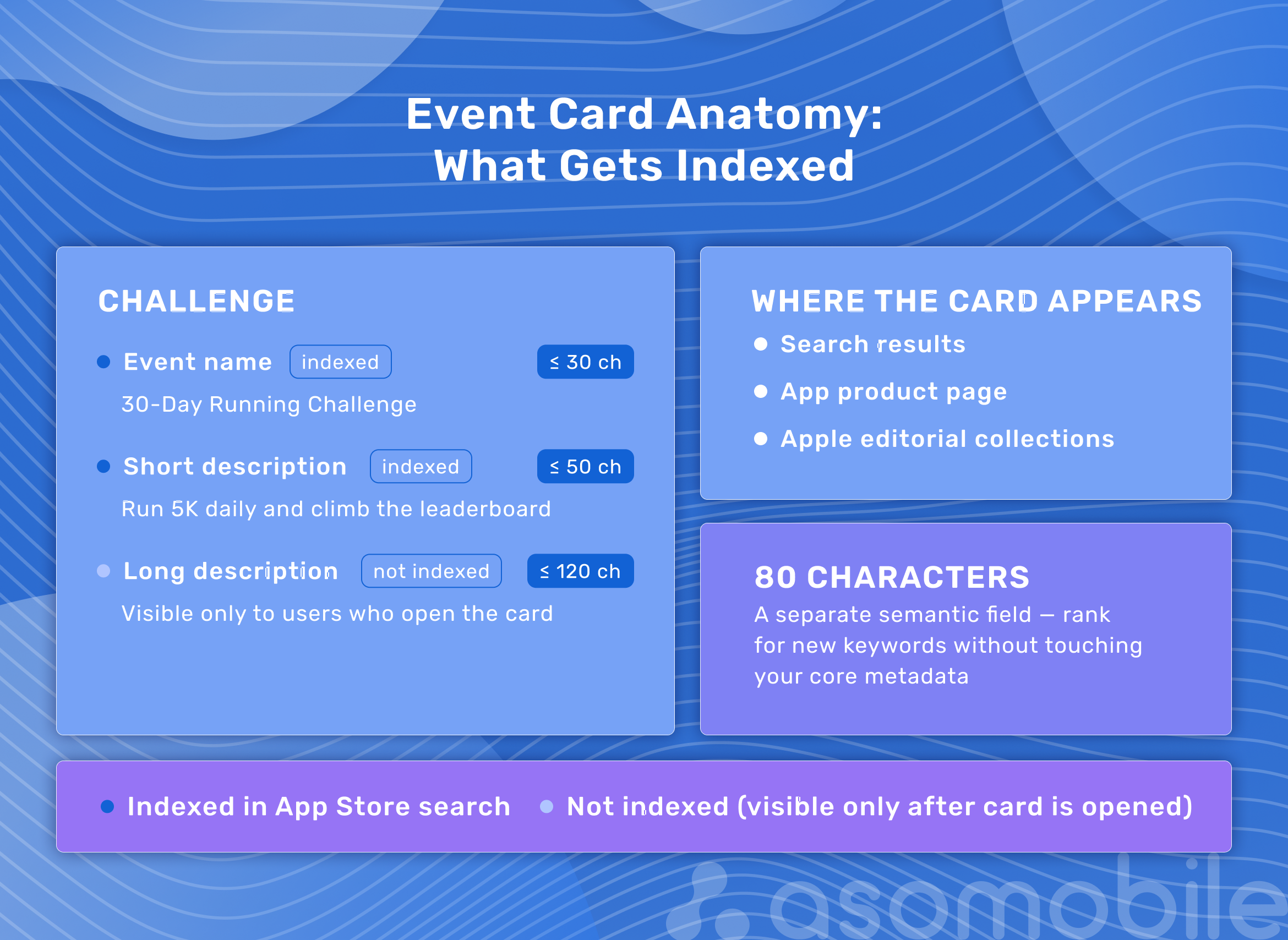
One important distinction: of all the event metadata, only the title (up to 30 characters) and short description (up to 50 characters) are indexed for search. The long description (up to 120 characters) is visible only to users who have already opened the card.
Eighty characters is a separate semantic field. Through Events, you can rank for queries that don't appear in your core app metadata and claim positions in search without touching the title or keywords in App Store Connect.
Example: a fitness app launches a 30-Day Running Challenge. The short description reads: Run 5 km daily, make the leaderboard. The app starts appearing for queries like running challenge, daily runs, running marathon — without any changes to the core metadata.
One thing that's often missed: users who already have the app installed don't see screenshots in search results. Instead, they see the active event card. This is a way to re-engage an audience that hasn't opened the app in a while — quietly, without push notifications.
How to optimize an event card
Think of the event card as a mini landing page. Every element should work toward a specific goal.
For the title and short description, start from the keyword: first decide which queries you want to appear for, then build the headline around that. Summer Fitness Marathon works better than June Event for Our Users because the first is specific and the second isn't.
On the media side: card text appears in white, so a light background or bright elements in the bottom left corner will make the headline unreadable. Video plays automatically and loops, so make it a smooth loop without sharp cuts. The poster frame (thumbnail) shows before playback — it's the first thing a user sees.
For timing, align with the event type and audience: short-term events (a few hours to a couple of days) work for promotions and announcements; medium-term (a week) for re-engagement; long-term (a month or more) for seasonal campaigns. Apple lets you target by country, language, and audience segment. One event, one goal — no dilution.
Common mistakes with Events
The most frequent and most avoidable mistake is a white media background. The event is ready, it passed review — but no one reads the card because the white text on a white background is invisible.
A weak title is when the name says something like Big New Update Is Here. That's a notification, not a headline. The title needs to tell users exactly what happened and why it's worth their attention right now.
Mismatched timing that ignores time zones is another common issue. A summer content event in October, or a New Year's event that went live in UTC and had already ended by the time the target audience woke up — that's lost reach.
Apple won't approve daily recurring activities, standard discounts without new content, or general promotions without a clear event hook.
One more thing: don't neglect the long description just because it isn't indexed. People who are already interested read it. Use it to answer why participate now — not to repeat the title in other words.
Google Play: the Events equivalent — LiveOps
Google Play launched a similar feature through LiveOps, but the logic works differently.
In the App Store, Events appear in search for all users and are explicitly indexed through metadata. On Google Play, events are less integrated into search results — the focus is more on the homepage and personalized recommendations, and the indexing mechanism is less transparent. App Store Connect gives a detailed breakdown by event goal — acquisition, engagement, re-engagement. Google Play Console offers a more limited set of metrics.
For apps with a cross-platform audience, this means the Events strategy needs to differ between the two: on the App Store, the emphasis is on search indexing and metadata; on Google Play, it's on visuals and reach through the recommendation system.
In-App Purchases as an ASO Tool
How IAPs are indexed in the App Store and affect visibility
In-app purchases in the App Store aren't just a revenue stream—they're separate entry points in search. Each purchase with an optimized name and icon can appear in search results alongside the main app as a standalone element.
Here's how it works: if a user searches for business English and your language app has an IAP by that name, the purchase card appears in search results. The user can go straight to the purchase without visiting the app page. Every properly optimized IAP is an additional point where users find you in search — with no changes to the core metadata. What shows in results: the purchase icon, the IAP name, and the type (subscription or one-time purchase).
What the user sees in search
In App Store search results, the IAP card appears below the main app card. For users who already have the app, it's a direct path to conversion. For new users, it's install first, purchase second. Either way, the IAP creates an additional touchpoint at the search stage — before the user ever lands on the app page.
Optimizing IAP names for search queries
The approach is similar to classic metadata work, just with a different object.
Start by collecting queries related to what a specific purchase offers. For a fitness app, that might be personal workout, meal plan, calorie tracker. Then find a name that both describes the value to the user and includes the target term. Personal Training Plan works. Premium Access doesn't — nobody searches for that.
In parallel, look at how top apps in your category name their IAPs and what queries they cover. After updating names, check position changes for target queries after 2–4 weeks.
One important constraint: Apple can reject an IAP with a misleading name. Focus on accuracy and relevance, not clickbait.
Example for a language app: Conversational Practice with Native Speakers covers queries about spoken language; IELTS Preparation captures a separate query; Business English for Work attracts a different audience segment. Three purchases — three segments — three additional search entry points.
Google Play: subscriptions and purchases in the listing
On Google Play, IAPs don't get separate search positions the way they do in the App Store. But purchases and subscriptions appear on the app page in a dedicated block that users see before they install.
The logic here is different. A clear subscription description with concrete benefits — 7 days free, then $4.99/month — converts better than just Premium. A distinct IAP icon that differs from the main app icon helps users quickly understand what's being offered. The order of offers on the page matters too: better-value options perform better when placed higher.
Indirectly, metrics affect Google Play rankings: high engagement among paying users and strong retention signal quality to the algorithm.
IAP and conversion: how to structure the offer hierarchy
Even perfectly search-optimized IAPs won't convert well if the offers aren't structured properly inside the app.
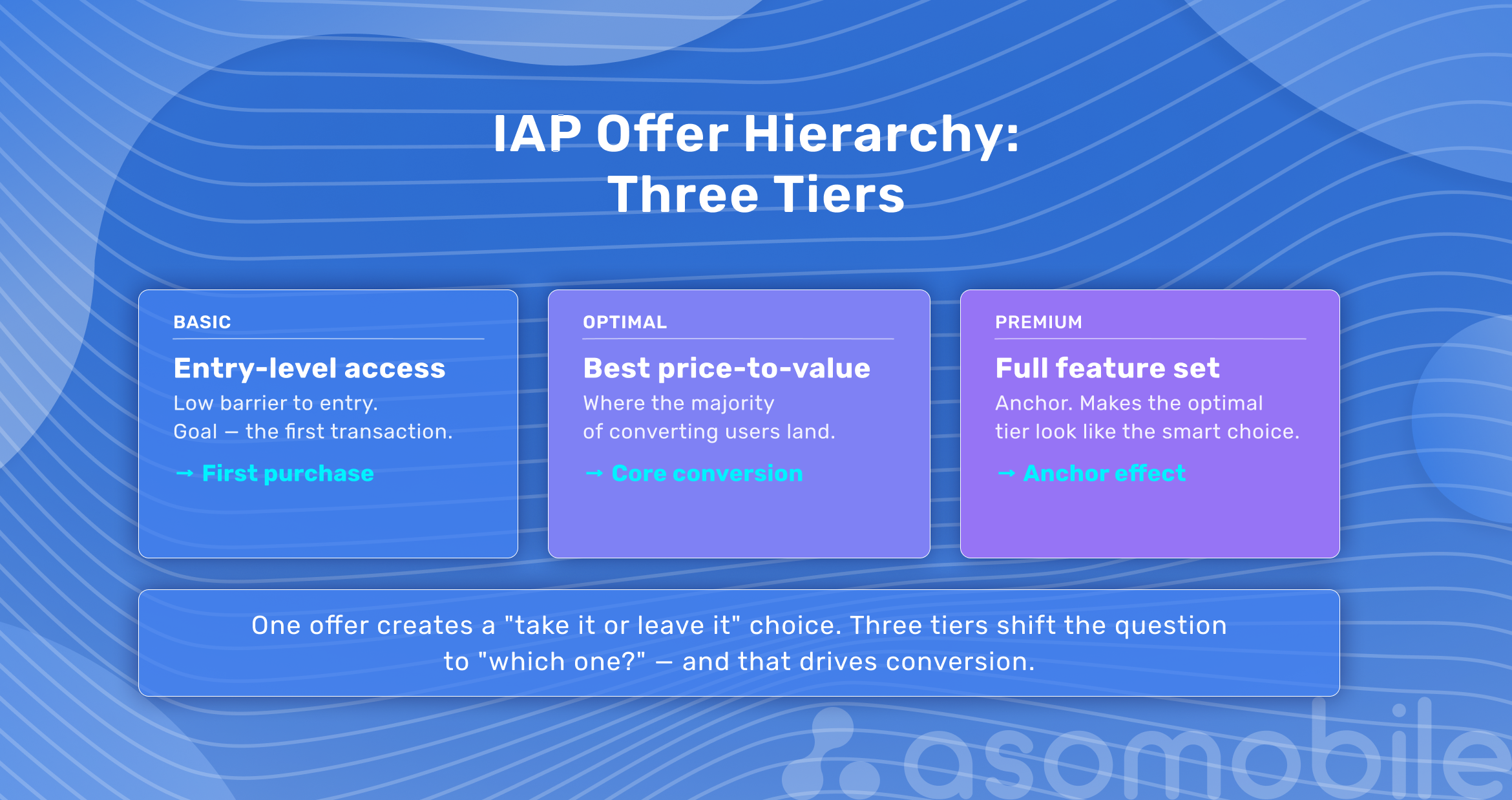
A working model has three tiers. The basic option is the most accessible, with the lowest barrier to entry — its job is the first transaction. The optimal tier offers the best value-for-money ratio and is often labeled as most popular. Most converting users choose this one. The premium tier exists as an anchor, making the optimal option look reasonable by comparison.
No choice creates a take it or leave it situation instead of which one do I want. One offer instead of three is a classic mistake. A 3–7 day trial for subscriptions lowers the entry barrier. The key metric after: retention at the end of the trial.
How Events and IAPs Work Together
The loop: event, purchase, retention
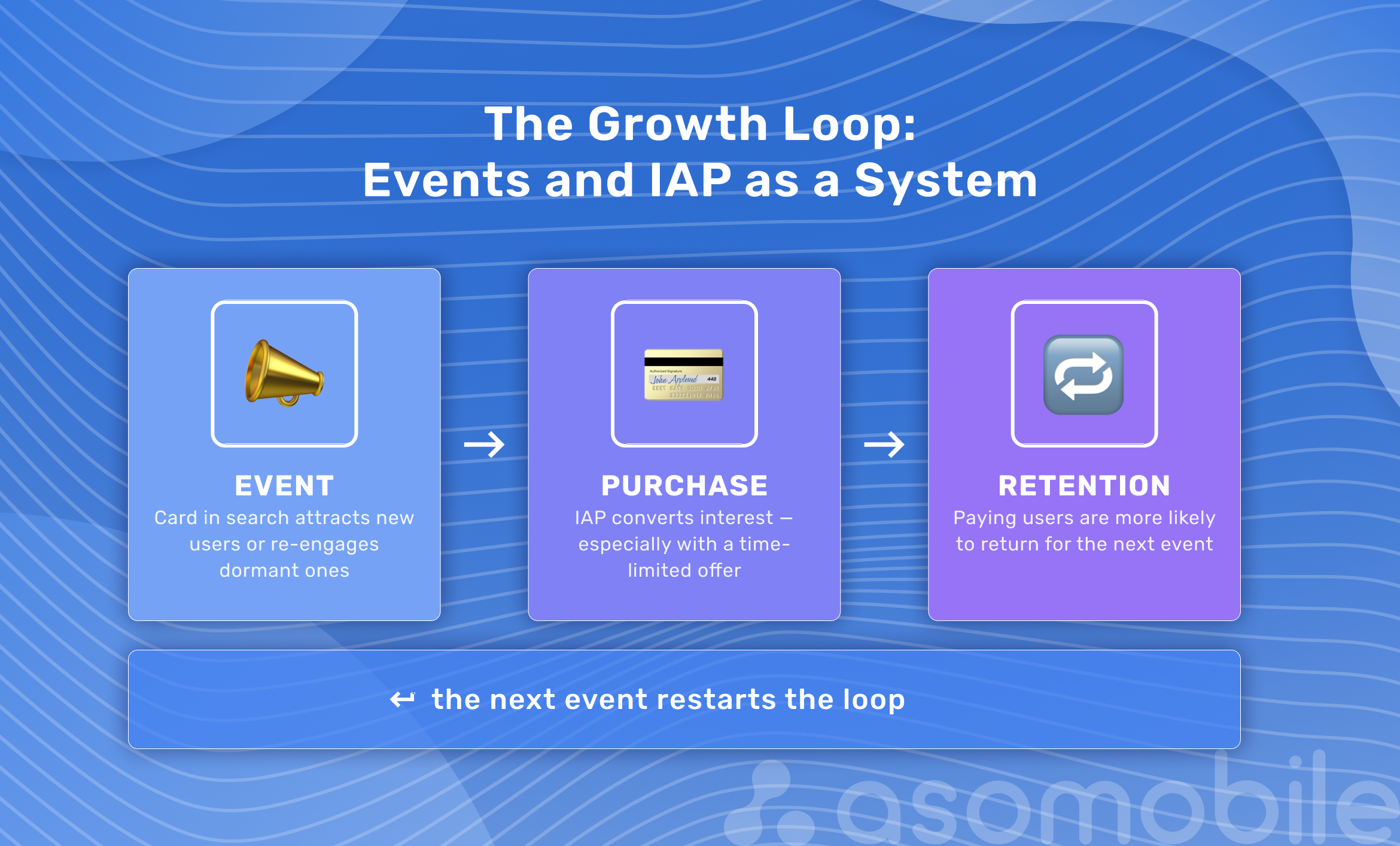
Events and IAPs are rarely treated as a system — and that's a missed opportunity. Together, they handle three jobs at once.
An event brings in or re-engages a user: someone sees the card in search, learns about new content or an offer, and opens the app. IAP converts that interest into a transaction—especially when the event includes a limited-time offer. After the purchase, the user is more likely to return when they see the next event. Three stages, one loop: event → purchase → return for the next event.
Seasonal campaigns: pairing an Event with a limited IAP
Seasonal campaigns are the most obvious pairing format, but timing matters.
Launch a Special Event or New Season event with seasonal context and simultaneously add an IAP with a limited offer. Reference it in the event's short description: Limited access to the winter collection. The user sees the event in search, goes to the app, sees an offer with a clear deadline. Urgency works when it's real.
What doesn't work: an event with no connection to the IAP. If you call it Winter Sale but the user opens the app and finds standard prices unchanged, there's no conversion. The disconnect is felt immediately.
Real examples
In games, the mechanic typically looks like this: an RPG launches a New Season with a new storyline, and an IAP Starter Pack — Season 3 appears in the store at 40% off. The event card indexes for queries tied to the new season's characters. Result: new user installs and IAP conversion from existing users.
In fitness apps, a January Challenge 30 Days of Workouts pairs well with an IAP Annual Plan with Personal Trainer at a special price for challenge participants only. The exclusivity mechanic drives subscription conversion.
In streaming, a Premiere Event around a new release pairs well with an IAP offering access to exclusive content or a one-month trial subscription. A user drawn in by a specific premiere converts into a subscriber.
Monitoring and Analytics
Tracking Event performance with ASOMobile
Manually tracking competitor events — scrolling the store and trying to remember what launched when — isn't a strategy. The Timeline tool in ASOMobile shows competitors' events: when they launched, what type they chose, and what metadata they used. The competitive landscape is already mapped out; you get the full picture without extra legwork.
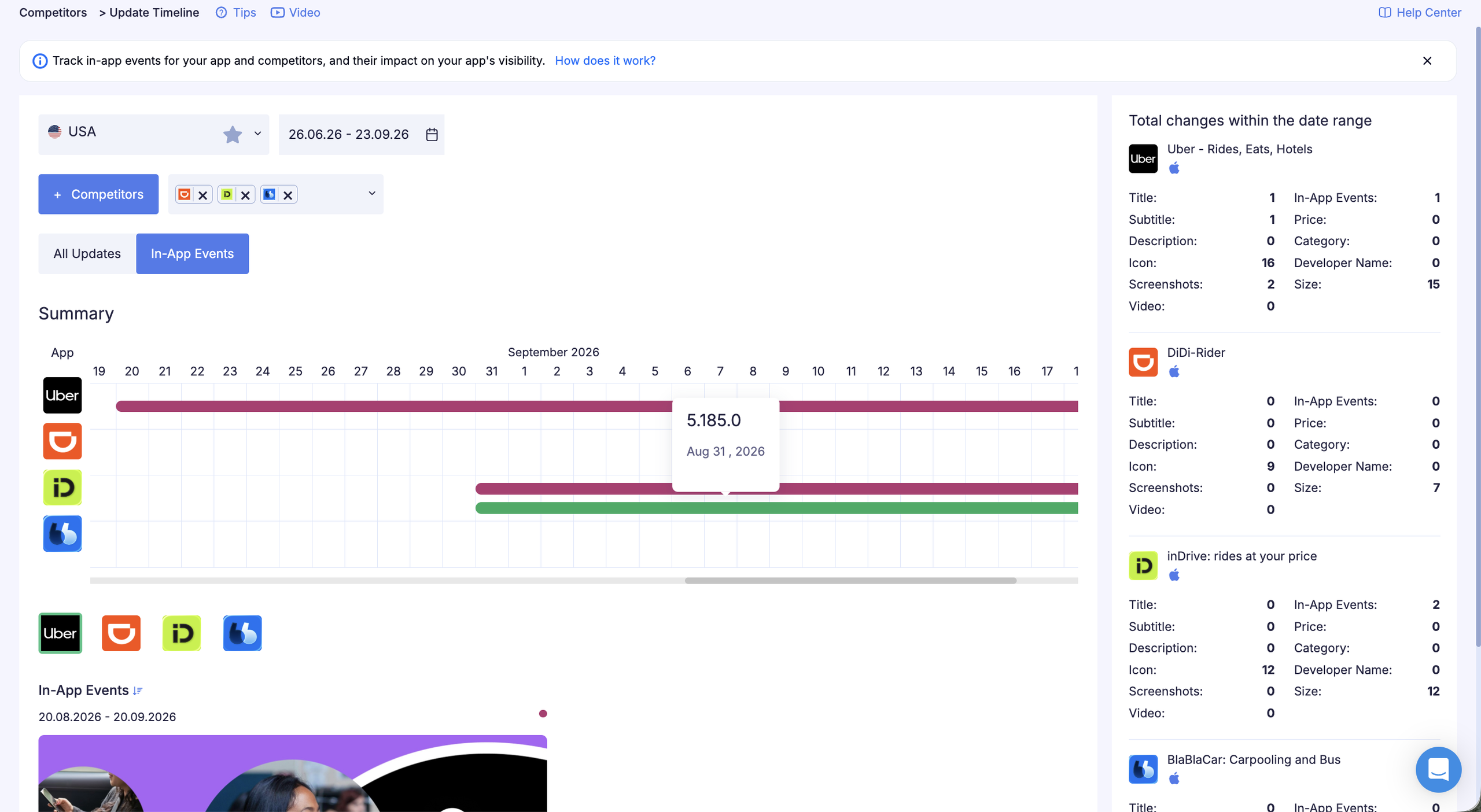
This helps in two ways: seeing how competitors structure their Event strategy by season, and finding uncovered semantic niches — queries that competitors use in Events but that aren't in your semantic core.
The Featuring section shows whether your event made it into Apple's editorial collections and in which markets. The App Store promotes events that are set up correctly and meet platform criteria, so this is a solid quality metric for the event itself.
Analyzing competitor IAPs with In-App Monitor
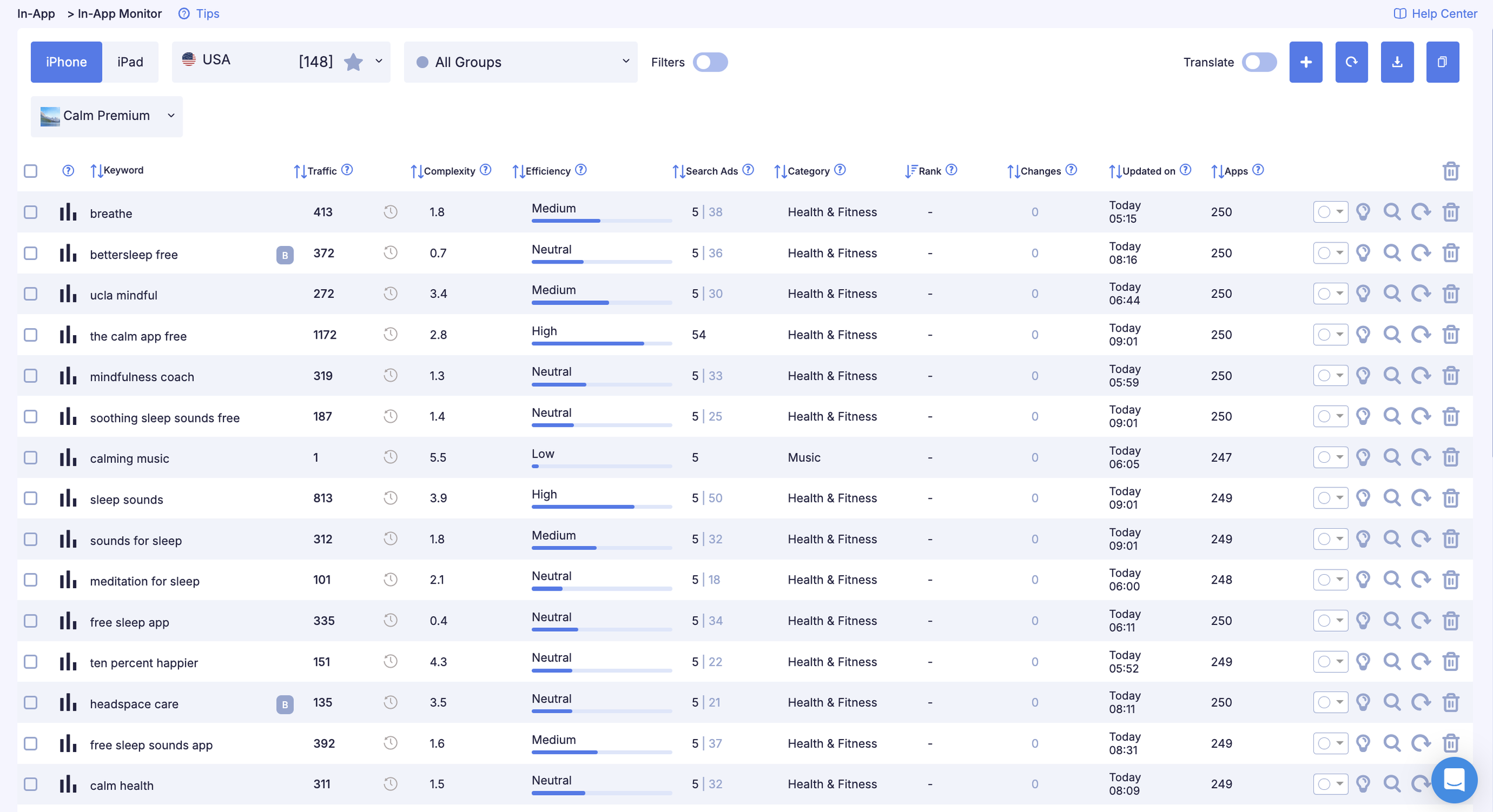
With In-App Monitor, you can track changes in In-App purchase positions by search query, and evaluate queries using accurate data on potential traffic volume, complexity, and efficiency for each query. You can also check a query's relevance with quick access to App Store search results.
This yields several practical insights. You see how competitors name their purchases and what keywords they cover — effectively a ready-made map of queries that work in your niche. You see the hierarchy: how many tiers competitors offer and what they call their packages. If everyone uses three tiers and you offer one, you're losing at the selection stage. And you see the timing: when competitors updated their IAP names and whether that aligns with seasonal campaigns.
In-App Keywords shows which search queries your IAPs are indexed for. It's a direct way to find positions you can improve by updating purchase names.
Pre-Launch Checklist
For In-App Events
- Event type (badge) matches the content
- Event title (up to 30 characters) includes a relevant search query
- Short description (up to 50 characters) expands search coverage without duplicating the title
- Long description covers the details: timing, conditions, why it matters right now
- No white background; bright elements don't obscure the text in the bottom left corner
- Video is set up as a loop; poster frame is selected
- Timing accounts for the target audience's time zones
- Audience targeting is configured: new, active, or inactive users
- Event goal is set in App Store Connect
- Card preview has been checked on different devices
- Event doesn't violate Apple's guidelines
For In-App Purchases
- IAP name includes a target search query, up to 30 characters
- Name is clear without context: the user understands exactly what they're getting
- IAP icon is distinct from the main app icon and reads clearly
- Three offer tiers exist; the optimal one is visually highlighted
- Trial period is in place for subscriptions
- IAPs have been checked via In-App Keywords: covered queries match the target audience
- Competitors have been checked via In-App Monitor: no uncovered semantic niches
- For Google Play: subscription description is complete; offer hierarchy is set on the app page
- IAP name complies with App Store requirements and isn't misleading
ASO, made simple. Optimize smarter, grow faster.
FAQ
In-App Events are temporary event cards in the App Store that appear in search results, on the app page, and in editorial collections. The event title and short description are indexed separately from core metadata — this lets you rank for additional queries without touching App Store Connect settings. Users who already have the app installed see the event card instead of screenshots in search.
In the App Store, each IAP with an optimized name can claim separate positions in search results, expanding semantic coverage without any changes to core metadata. On Google Play, IAPs don’t directly affect search rankings, but they appear on the app page and influence conversion.
The type depends on the content. Challenge is for completing a task; Competition for competing; Premiere for the first showing of unique content; Major Update for significant updates; Special Event for everything else that includes something new. The choice of type affects where Apple features the event in its collections.
Yes, the App Store allows up to 5 active events simultaneously. But if they target the same audience, they’ll compete for attention. It’s better to differentiate by audience type (new, active, inactive) or by market.
Through ASOMobile tools: Timeline shows the history of competitor events with metadata and types; In-App Monitor shows competitor IAPs with names and price tiers; In-App Keywords shows the queries your purchases are indexed for. The Featuring section shows which of your events made it into App Store editorial collections.
White media background (card text is white — it disappears), a weak title with no specifics or keywords, mismatched timing that ignores time zones, events with no new content (Apple rejects these). And a frequent strategic mistake: launching an event with no connection to a specific IAP offer, leaving potential conversion on the table.
Events bring in or re-engage users. IAPs convert that interest into a transaction, especially when the event comes with a limited-time offer. After the purchase, users are more likely to return when the next event appears. That’s the loop: event → purchase → retention → next event.